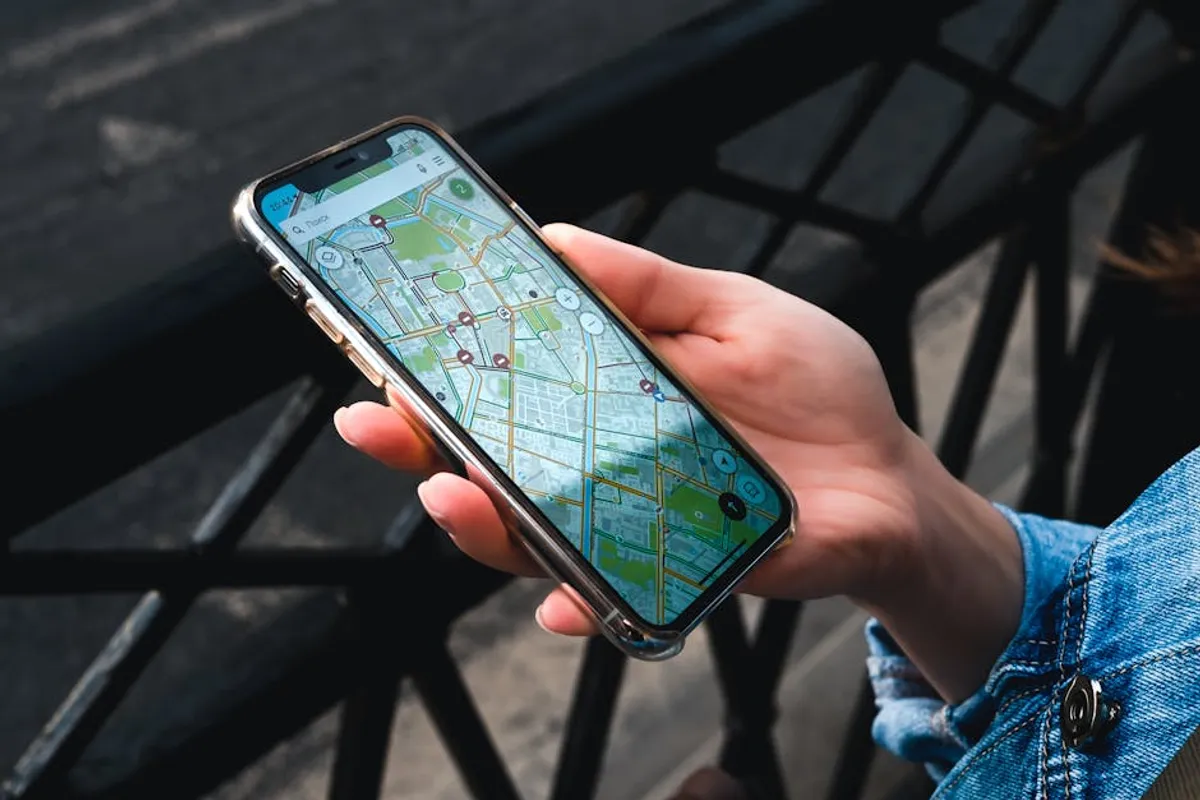
The removal of dedicated media controls directly within Google Maps has prompted a significant shift in how users manage audio during navigation. This change, implemented as part of Google's ongoing interface refinements, means that familiar in-app buttons for play, pause, skip, or volume adjustment for integrated music and podcast services are no longer present within the primary Maps interface. For many drivers and commuters accustomed to seamless control, this update represents an unexpected disruption, necessitating a re-evaluation of their in-car media management strategies.
The Shift in Google Maps: Understanding the Removal of Media Controls
Historically, Google Maps offered a convenient overlay or integrated panel that allowed users to control media playback from services like Spotify, Apple Music, or YouTube Music directly within the navigation screen. This feature provided quick access to essential functions without requiring users to switch applications. The removal of these controls was not a bug, but a deliberate design decision by Google to streamline the primary navigation interface and delegate media playback responsibilities to dedicated applications or integrated automotive systems.
The core rationale behind this change centers on reducing interface clutter and enhancing focus on navigation. By removing media controls, Google aims to simplify the visual information presented to the driver, potentially contributing to a safer driving experience by minimizing the need to interact with multiple complex functions within a single app. This approach aligns with a broader industry trend towards deeper integration with car-specific operating systems like Android Auto and Apple CarPlay, which are designed to handle media and navigation concurrently in a more cohesive, driver-optimized environment.
Impact on User Experience and Navigation Workflow
For users who relied on the integrated media controls, the immediate impact is a loss of convenience. Adjusting a song, pausing a podcast, or changing volume now typically requires one of the following actions:
- Switching to the dedicated media application (e.g., Spotify, Apple Music) on the phone.
- Utilizing physical controls on the car's steering wheel or infotainment system.
- Issuing voice commands via Google Assistant or Siri.
This shift can introduce a minor but noticeable interruption in the driving workflow. While switching apps is feasible when stationary, it introduces a potential distraction when the vehicle is in motion, underscoring the importance of alternative control methods that prioritize safety.
Restoring Media Management: Practical Workarounds and Integrations
While the direct in-app controls are gone, several effective methods exist to manage media playback seamlessly alongside Google Maps navigation. These solutions leverage existing technologies and integrations designed for a connected driving experience.
Leveraging Android Auto and Apple CarPlay
For vehicles equipped with Android Auto or Apple CarPlay, these platforms offer the most integrated and user-friendly solution. Both systems project a simplified, driver-optimized version of your phone's apps onto the car's infotainment screen. Within these interfaces, media apps like Spotify, Apple Music, and YouTube Music coexist with navigation apps, allowing for dedicated media control panels that are easily accessible without leaving the car's primary display.
Benefit: Seamless integration, reduced distraction, dedicated media controls within the car's display, and often voice command capabilities built directly into the car's system.
Direct Media App Controls
When not using Android Auto or Apple CarPlay, the primary method involves interacting directly with the media application on your phone. This means minimizing Google Maps (or letting it run in the background) and opening your music or podcast app to make adjustments.
Consideration: Requires app switching, which can be more distracting if performed while driving. It is best used when stopped or as a last resort.
Voice Commands with Google Assistant
Google Assistant remains a powerful tool for hands-free media control. Even with Google Maps actively navigating, you can issue commands like "Hey Google, play [artist/song]," "Hey Google, pause music," "Hey Google, skip song," or "Hey Google, turn up the volume." The Assistant will execute these commands, often without requiring you to touch your phone or switch apps, maintaining focus on the road.
Advantage: Hands-free operation, maintains focus on navigation, and is compatible with most Android devices and the Google Assistant app on iOS.
Bluetooth Device Controls
Many modern vehicles and aftermarket car stereos offer built-in Bluetooth controls that can manage media playback from a connected phone. Steering wheel buttons for volume, track skip, and play/pause are common features. Similarly, Bluetooth headphones or external Bluetooth controllers can provide tactile control without needing to interact with the phone's screen.
Utility: Physical, tactile control without looking at a screen, often available directly on the steering wheel, minimizing reach and distraction.
Adjusting Phone Settings for Quick Access
Both Android and iOS provide system-level media controls accessible through the notification shade (Android) or Control Center (iOS). A quick swipe down (or up, depending on the OS and device) can reveal a persistent media player widget, allowing for basic play/pause and skip functions without fully leaving the Google Maps app or opening the dedicated media app.
Tip: Quick access for minor adjustments, reducing the need to navigate through app interfaces.
Pro Tip for Driving Safety: Prioritize voice commands or your car's integrated infotainment system (Android Auto/Apple CarPlay) for media control while navigating. Minimizing direct phone interaction while driving is crucial for safety and reducing distracted driving incidents. Pre-set playlists or podcasts before beginning your journey to further reduce the need for in-trip adjustments.
Optimizing Your Driving Setup for Integrated Media Control
Adapting to the absence of in-app Google Maps media controls involves integrating the available workarounds into a cohesive system. The most effective strategy combines pre-trip preparation with hands-free control methods during the journey. Before departing, ensure your chosen music or podcast is playing and adjust the initial volume. During the drive, rely on voice commands for major changes or leverage steering wheel controls for quick adjustments. For those with compatible vehicles, Android Auto or Apple CarPlay offer the most seamless and safest experience by consolidating navigation and media into a single, driver-optimized interface. By consciously adopting these practices, users can maintain both effective navigation and enjoyable media playback without compromising safety or convenience.
Frequently Asked Questions
Q: Why did Google remove the media controls from Maps?
A: Google removed these controls to streamline the navigation interface, reduce clutter, and encourage users to utilize dedicated media apps or integrated car systems like Android Auto and Apple CarPlay for media management, potentially enhancing driving safety.
Q: Can I get the old media controls back in Google Maps?
A: No, the removal was a deliberate design change by Google, and there is no official setting or option to re-enable the integrated media controls directly within the Google Maps app.
Q: What's the safest way to control music while navigating with Google Maps?
A: The safest methods include using voice commands via Google Assistant, utilizing steering wheel controls in your vehicle, or employing Android Auto or Apple CarPlay if your car supports them, as these options minimize direct interaction with your phone's screen.
Q: Does this change affect all versions of Google Maps?
A: Yes, this change has been rolled out across recent versions of the Google Maps application on both Android and iOS devices, impacting a broad user base.